Prerequisites
- An Oso for Agents account with at least one alert configured
- Permission to add apps to your Slack workspace (or a workspace admin who can approve it)
Connect Slack
- In Oso, go to Settings and click the Integrations tab.
- Click Connect next to Slack.
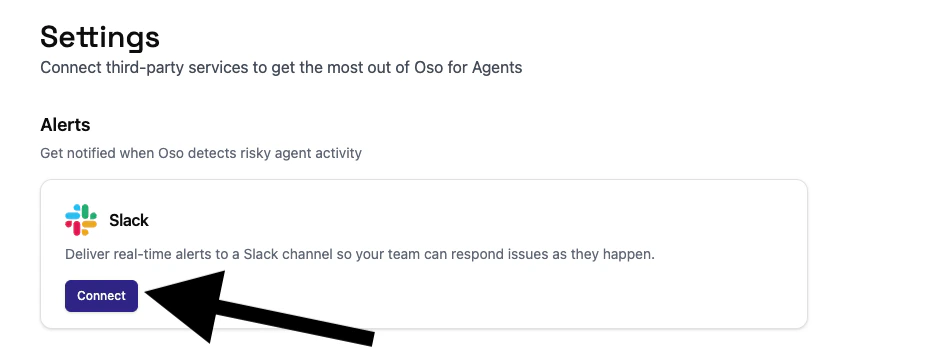
- You will be redirected to Slack to authorize the Oso app.
Choose a notification channel
- Once redirected, select the Slack channel where alert notifications should be posted.
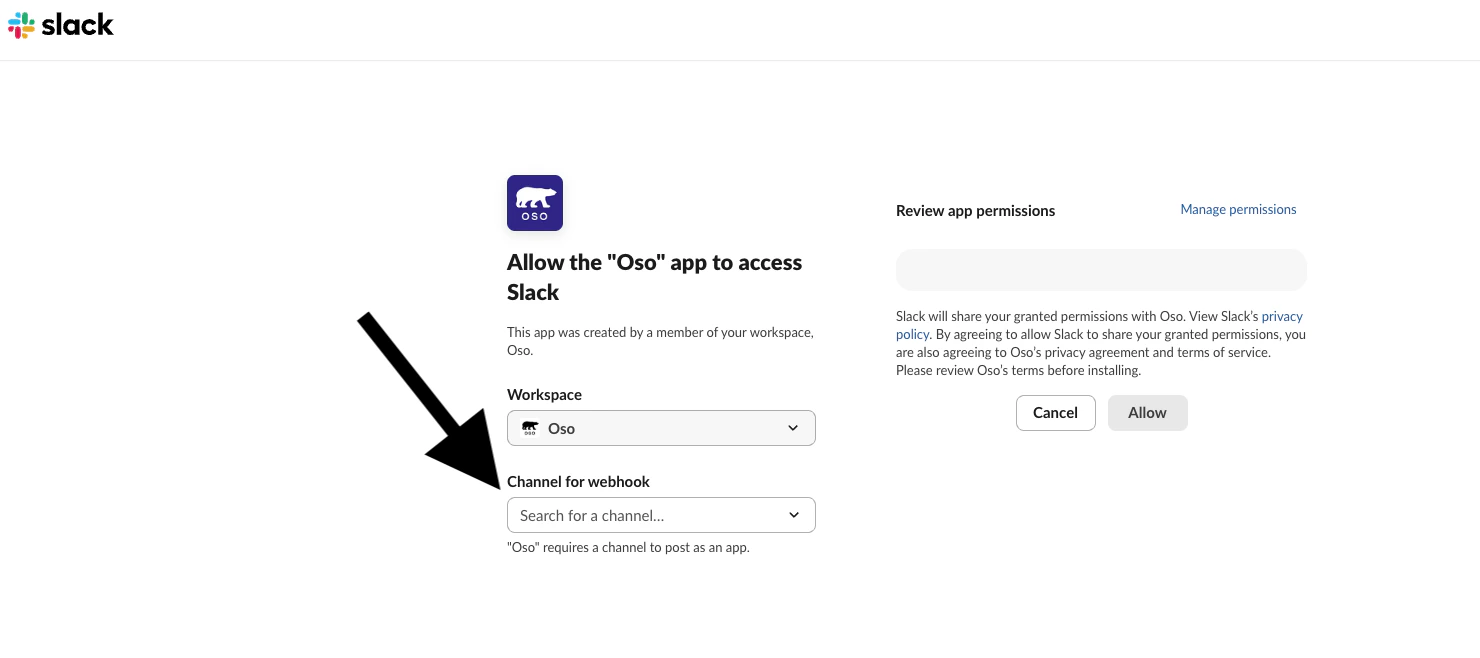
- Click Allow.
- On the next Alert the configured channel should receive a slack message.
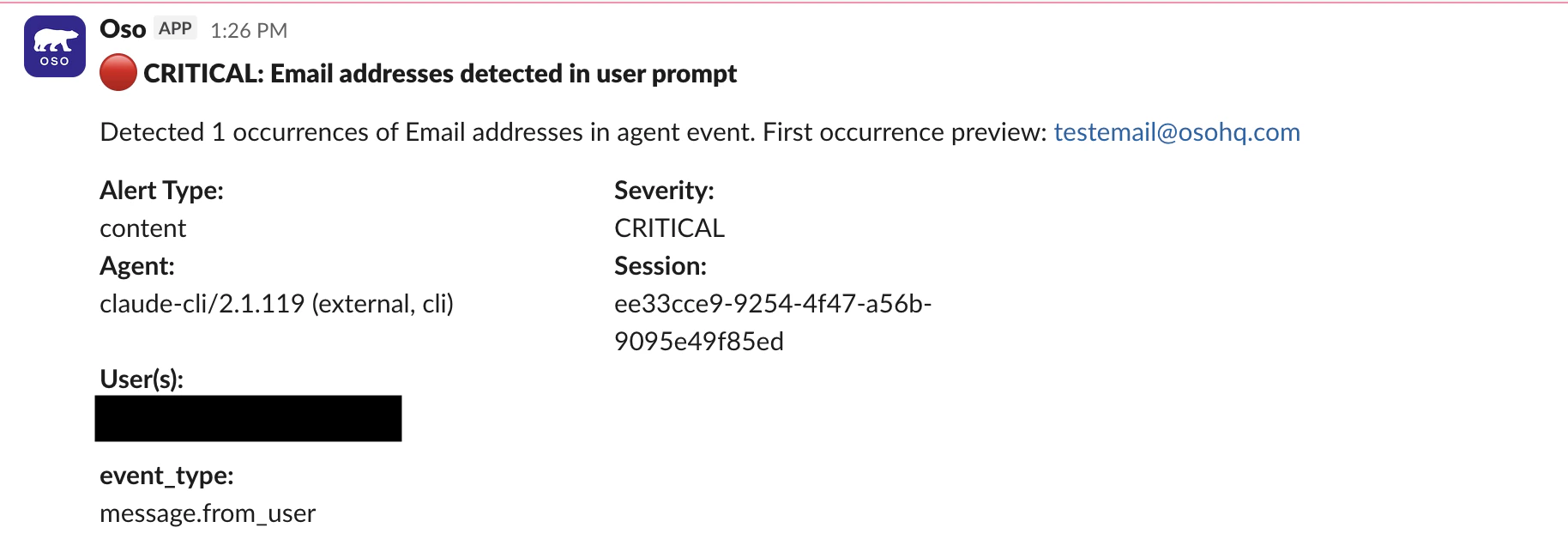
What a notification looks like
Each Slack notification includes:- What was detected — the alert type
- Who was involved — the agent, user, or device