1. Create an API token in SentinelOne
In the SentinelOne management console, create a service-account API token with a role that grants the following permissions:- Endpoints: View
- SDL Search: View
- SDL Data: View
- SDL Data: View EDR
https://usea1-purple.sentinelone.net). You can find it in your browser’s address bar when logged in.
What Oso does with this access
Oso uses read-only access to scan endpoints for installed AI agent software. Nothing is written to or modified on your endpoints or in SentinelOne.2. Connect SentinelOne in Oso
In Oso, with Oso for Agents selected in the product switcher, open Connections from the sidebar and scroll to the EDR section.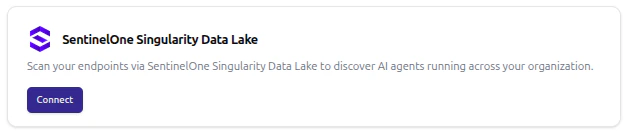
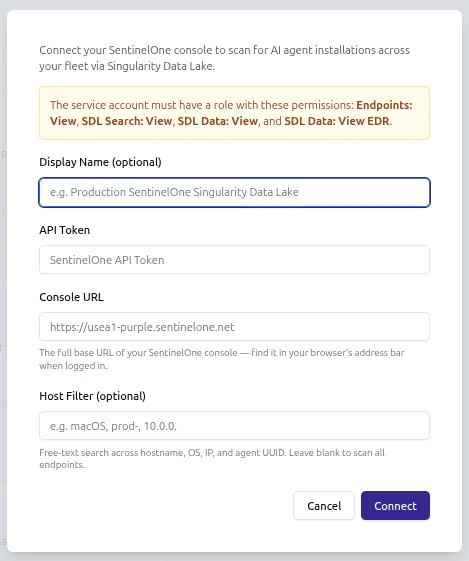
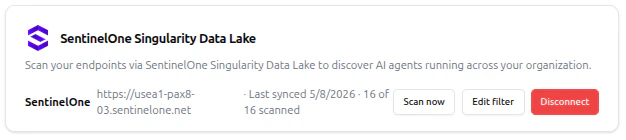
Credentials are encrypted at rest. Once connected, the EDR card shows the configured console URL and a Scan now button.
3. Restrict scope with a host filter (optional)
The host filter is a SentinelOne free-text search applied during the seeding phase of every scan. It matches across hostname, operating system, IP address, agent UUID, and other endpoint metadata. Examples:macOS— only macOS endpointsprod-— endpoints whose hostname (or other metadata) containsprod-10.0.0.— endpoints in a specific IP range
network could match any endpoint whose interface metadata contains “Network”. Prefer specific substrings (a hostname prefix unique to your fleet, an exact OS name) over generic ones.
The filter can be changed at any time using the Edit filter button on the EDR card. Changes take effect on the next scan.
4. Run a scan
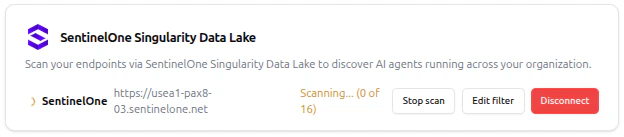
The first scan starts shortly after the integration is connected. After that, Oso re-scans every 12 hours, and a scan can be triggered on demand at any time using the Scan now button on the EDR card. During a scan, Oso enumerates endpoints matching the filter and queries SentinelOne Singularity Data Lake for evidence of installed AI agent software on each one. SDL queries cover a recent time window of activity per endpoint — agents that have run within that window will appear; agents installed but never used may not be detected through this path.