

Get started with Oso by running the installer. It configures your coding agents to route traffic through Oso and registers your device. You will:
- Get your Environment ID.
- Run the Oso installer to configure your tools and register your device.
- See agent activity in your Oso for Agents dashboard.
Step 1: Get your Environment ID
- Go to ui.osohq.com and log in.
If you are a new user, create an Oso for Agents tenant when prompted.
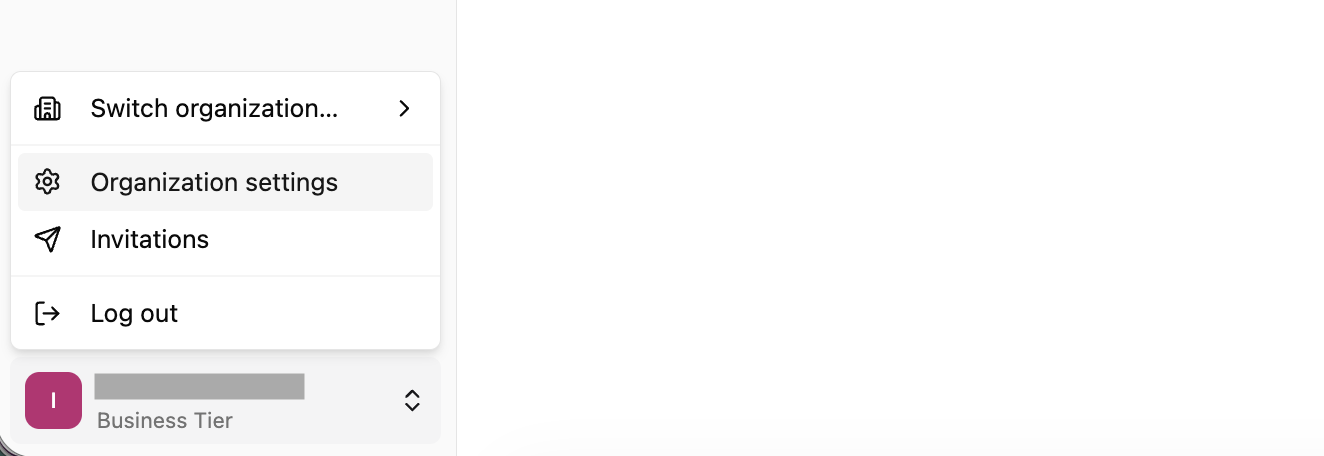
- Click your organization name in the bottom-left corner and select Organization settings.
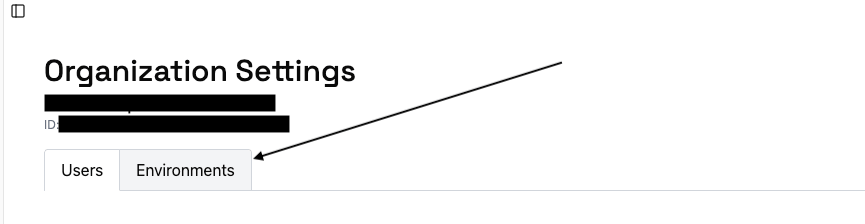
- In the settings panel, click the Environments tab.
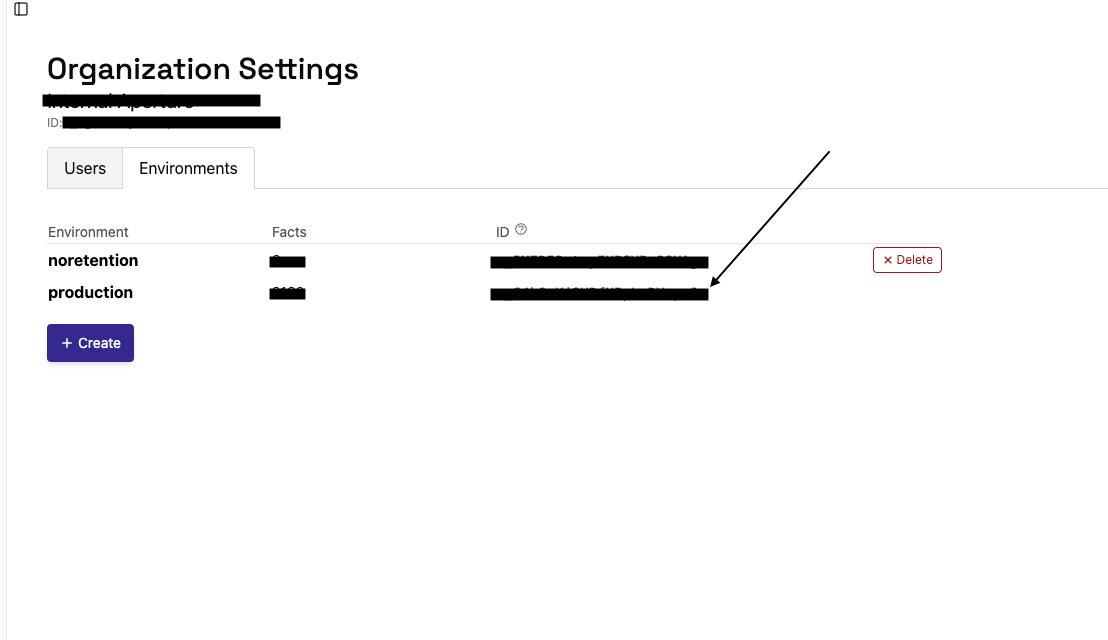
- Copy the Environment ID for your environment.
Step 2: Install and configure
Run the Oso installer in your terminal:To install globally on the device, run with
sudo sh instead:What the installer configures
The installer prompts you to select which tools to configure. By default all are selected.Manual configuration
If you prefer to configure tools by hand, expand the sections below.Claude Code
Claude Code
Add the following
hooks block to ~/.claude/settings.json, replacing <path-to-home> with your home directory (e.g. /home/yourname or /Users/yourname):If you previously routed Claude Code through the Oso proxy with
ANTHROPIC_BASE_URL, remove it from your settings.json env block. Hooks capture the same activity, and keeping both produces duplicate events.Codex
Codex
Create a model provider configuration in Replace
~/.codex/config.toml:<your-environment-id> with the Environment ID from Step 1.
Enter your email into the X-Identity header to allow Oso to correlate sessions with a specific user.If you have
OPENAI_BASE_URL set as an environment variable, unset it so the model provider configuration takes effect.GitHub Copilot
GitHub Copilot
Create
~/.copilot/hooks/oso.json with the following content, replacing <path-to-home> with your home directory (e.g. /home/yourname or /Users/yourname):GitHub Copilot hooks can only be installed at the user level. There is no global configuration directory for Copilot, so root/system-wide installation is not supported.
Step 3: Monitor agent activity in the Oso dashboard
Use your coding agents as normal. Activity will appear in your Oso for Agents dashboard.Uninstalling
Runoso-setup uninstall the same way you installed - without sudo for a user install,
or with sudo if you ran the installer as root.
oso-hook
and oso-setup binaries. It’s safe to run more than once.
For the Claude Desktop Plugin, you must separately remove it through
Claude Desktop → Customize → Plugins.
Pass --keep-logs to retain oso-hook debug logs:
Next steps
- Shadow AI: Discover what AI agents are in use across your organization.
- Session Monitoring: See what agents are doing inside their sessions.
- Alerts: Set up monitoring for unsanctioned usage and sensitive content.
- Managed Deployment: Deploy Oso across your organization via MDM or IT policy.
- Other integrations: Network-level and endpoint-based discovery via EDR or Tailscale Aperture.