> ## Documentation Index
> Fetch the complete documentation index at: https://www.osohq.com/docs/llms.txt
> Use this file to discover all available pages before exploring further.
# Slack
> Receive Oso alert notifications in Slack.
Connect Oso to Slack to receive alert notifications in a channel of your choice. Each notification links directly to the alert details page in Oso for investigation.
## Prerequisites
* An Oso for Agents account with at least one [alert](/docs/oso-for-agents/alerts) configured
* Permission to add apps to your Slack workspace (or a workspace admin who can approve it)
## Connect Slack
1. In Oso, go to **Settings** and click the **Integrations** tab.
2. Click **Connect** next to Slack.
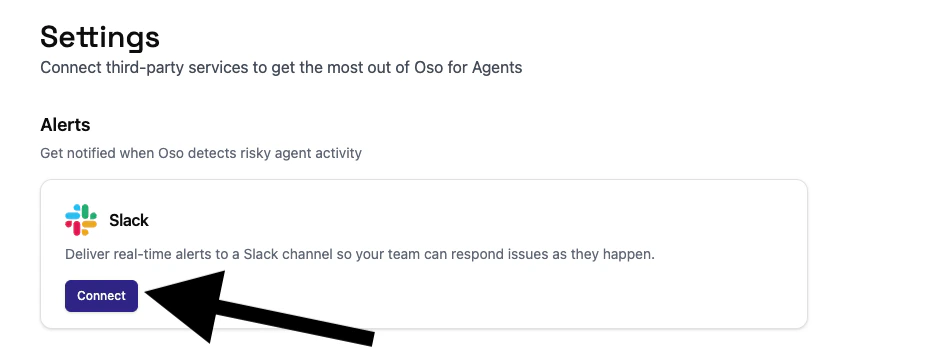 3. You will be redirected to Slack to authorize the Oso app.
## Choose a notification channel
1. Once redirected, select the Slack channel where alert notifications should be posted.
3. You will be redirected to Slack to authorize the Oso app.
## Choose a notification channel
1. Once redirected, select the Slack channel where alert notifications should be posted.
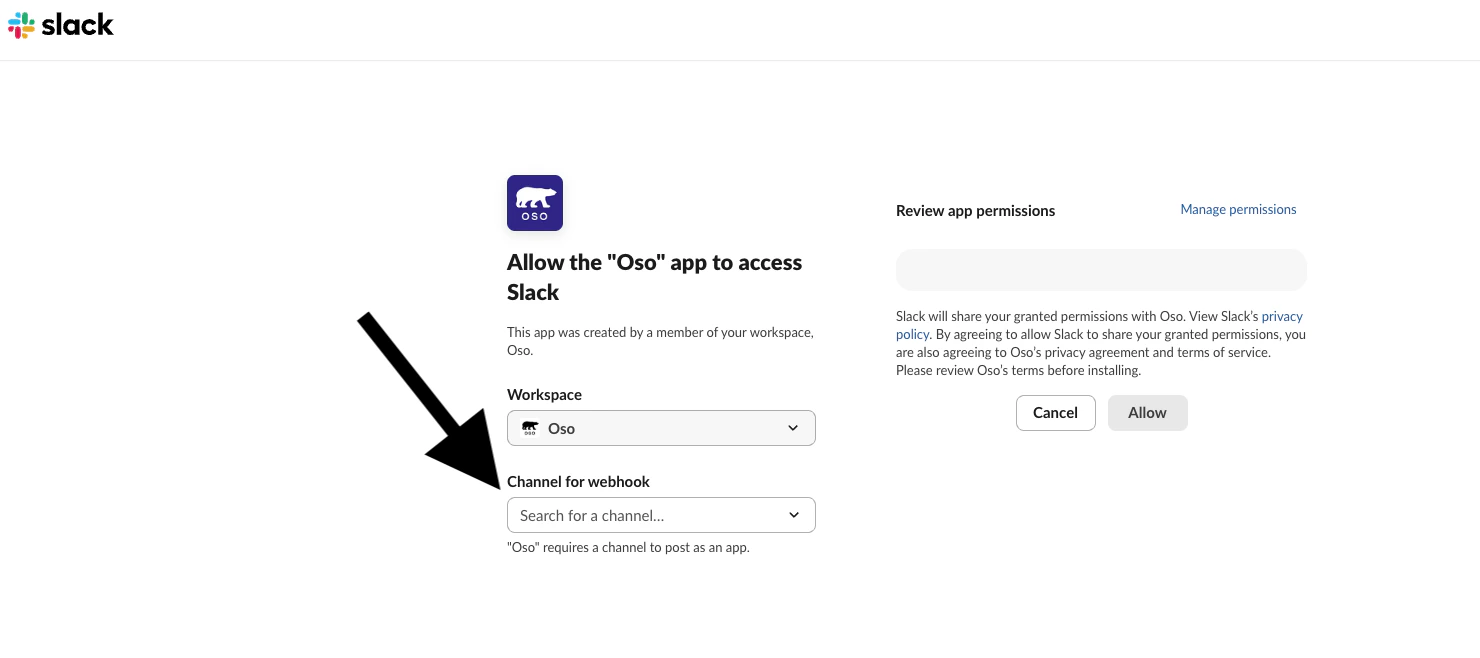 2. Click **Allow**.
3. On the next Alert the configured channel should receive a slack message.
## What a notification looks like
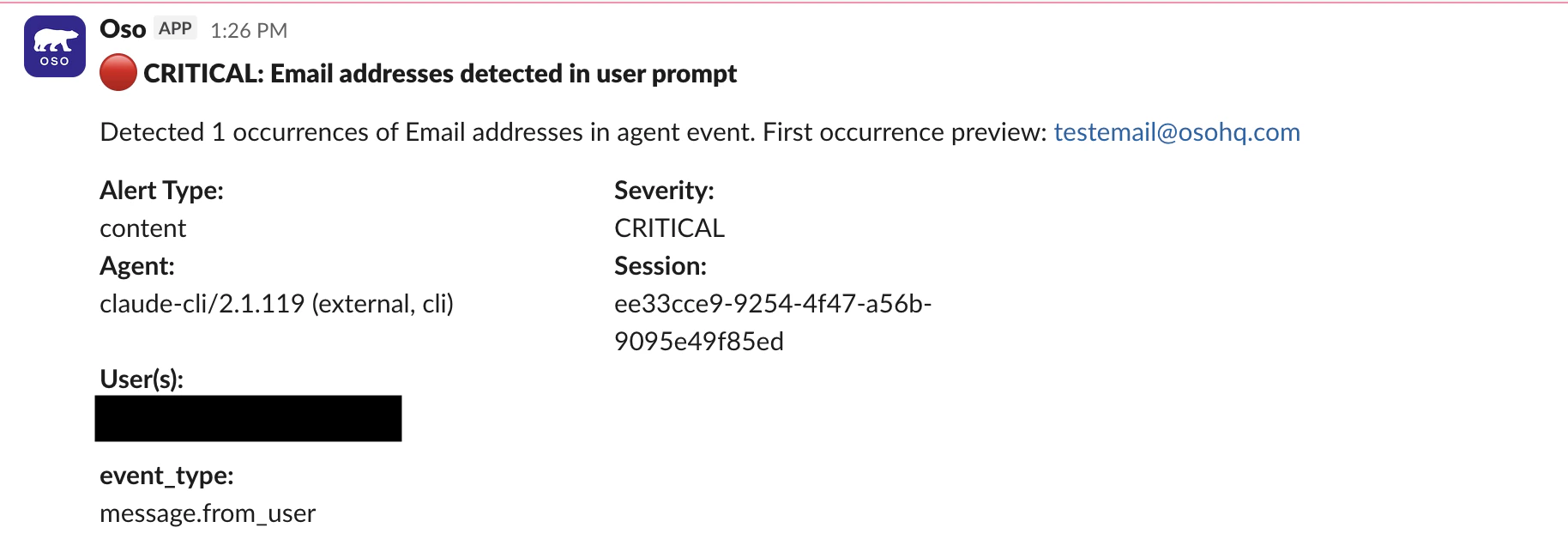
Each Slack notification includes:
* **What was detected** — the alert type
* **Who was involved** — the agent, user, or device
2. Click **Allow**.
3. On the next Alert the configured channel should receive a slack message.
## What a notification looks like
Each Slack notification includes:
* **What was detected** — the alert type
* **Who was involved** — the agent, user, or device
 ## Disconnecting Slack
To disconnect, go to **Settings → Integrations → Slack** and click **Disconnect**. Oso will stop sending notifications immediately. Reconnecting will prompt you to re-authorize and re-select a channel.
## Disconnecting Slack
To disconnect, go to **Settings → Integrations → Slack** and click **Disconnect**. Oso will stop sending notifications immediately. Reconnecting will prompt you to re-authorize and re-select a channel.