> ## Documentation Index
> Fetch the complete documentation index at: https://www.osohq.com/docs/llms.txt
> Use this file to discover all available pages before exploring further.
# CrowdStrike
> Connect CrowdStrike Falcon to Oso to scan endpoints for unsanctioned AI agents.
This page walks through connecting a CrowdStrike Falcon tenant to Oso so it can scan endpoints for installed AI agent software. For background on what EDR discovery does and how it compares to other sources, see the [EDR overview](/oso-for-agents/integrations/edr).
## 1. Create an API client in CrowdStrike Falcon
In the CrowdStrike Falcon console, create a new API client with the following scopes:
* **Hosts**: Read
* **Real Time Response**: Read
Note the cloud region the API client was created in (one of US-1, US-2, EU-1, or US-GOV-1) and copy the **Client ID** and **Client Secret**. The secret is only shown once.
### What Oso does with this access
Oso uses read-only access to scan endpoints for installed AI agent software. Nothing is written to or modified on your hosts or in CrowdStrike.
## 2. Connect CrowdStrike in Oso
In Oso, with **Oso for Agents** selected in the product switcher, open **Connections** from the sidebar and scroll to the **EDR** section.
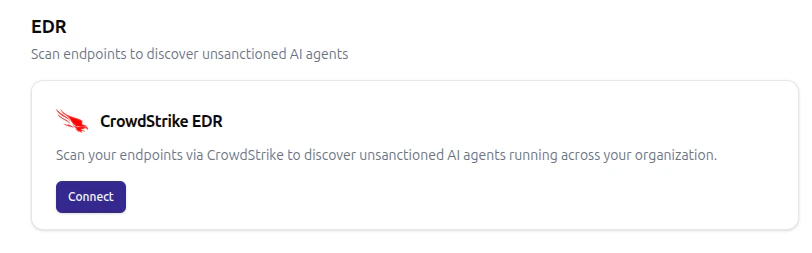 Click **Connect** and fill in the dialog:
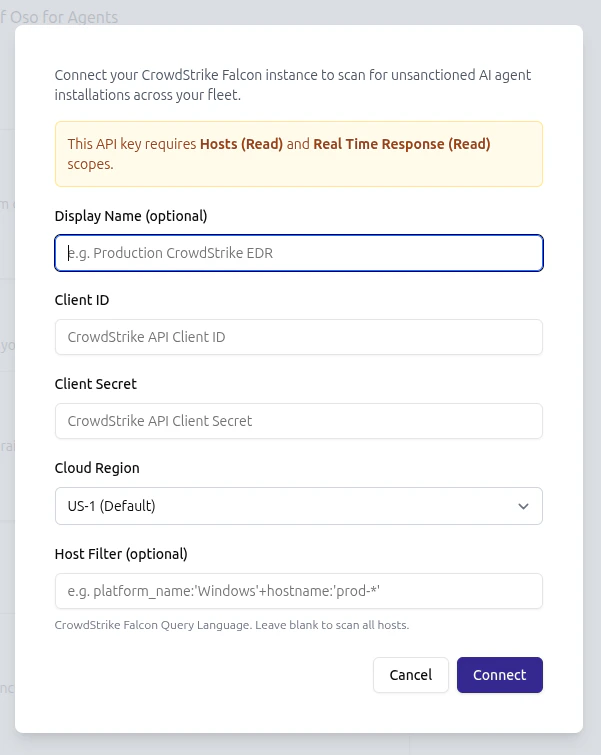 | Field | Description |
| --------------------------- | ---------------------------------------------------------------------------------------------------------------------------------------------------------------------------------------------------------------------- |
| **Display Name** (optional) | A label for this integration, useful when more than one CrowdStrike tenant is connected. |
| **Client ID** | The API client ID from step 1. |
| **Client Secret** | The API client secret from step 1. |
| **Cloud Region** | Must match the CrowdStrike cloud where the API client was created. |
| **Host Filter** (optional) | A [Falcon Query Language](https://falcon.crowdstrike.com/documentation/page/d3c84a1b/falcon-query-language-fql) expression that limits which hosts are scanned. Leave blank to scan every host the API client can see. |
Credentials are encrypted at rest. Once connected, the EDR card shows the configured region and a **Scan now** button.
## 3. Restrict scope with a host filter (optional)
The host filter is applied during the seeding phase of every scan and supports any FQL expression that CrowdStrike's `/devices/queries/devices/v1` endpoint accepts. Examples:
* `platform_name:'Windows'+hostname:'prod-*'` — Windows hosts whose hostname starts with `prod-`
* `platform_name:'Mac'` — macOS hosts only
* `tags:'SensorGroupingTags/managed-fleet'` — hosts tagged in CrowdStrike
The filter can be changed at any time using the **Edit filter** button on the EDR card. Changes take effect on the next scan.
## 4. Run a scan
The first scan starts shortly after the integration is connected. After that, Oso re-scans every 12 hours, and a scan can be triggered on demand at any time using the **Scan now** button on the EDR card.
During a scan, Oso enumerates hosts matching the filter, opens a Real Time Response session on each one, and runs read-only commands to inspect installed software.
| Field | Description |
| --------------------------- | ---------------------------------------------------------------------------------------------------------------------------------------------------------------------------------------------------------------------- |
| **Display Name** (optional) | A label for this integration, useful when more than one CrowdStrike tenant is connected. |
| **Client ID** | The API client ID from step 1. |
| **Client Secret** | The API client secret from step 1. |
| **Cloud Region** | Must match the CrowdStrike cloud where the API client was created. |
| **Host Filter** (optional) | A [Falcon Query Language](https://falcon.crowdstrike.com/documentation/page/d3c84a1b/falcon-query-language-fql) expression that limits which hosts are scanned. Leave blank to scan every host the API client can see. |
Credentials are encrypted at rest. Once connected, the EDR card shows the configured region and a **Scan now** button.
## 3. Restrict scope with a host filter (optional)
The host filter is applied during the seeding phase of every scan and supports any FQL expression that CrowdStrike's `/devices/queries/devices/v1` endpoint accepts. Examples:
* `platform_name:'Windows'+hostname:'prod-*'` — Windows hosts whose hostname starts with `prod-`
* `platform_name:'Mac'` — macOS hosts only
* `tags:'SensorGroupingTags/managed-fleet'` — hosts tagged in CrowdStrike
The filter can be changed at any time using the **Edit filter** button on the EDR card. Changes take effect on the next scan.
## 4. Run a scan
The first scan starts shortly after the integration is connected. After that, Oso re-scans every 12 hours, and a scan can be triggered on demand at any time using the **Scan now** button on the EDR card.
During a scan, Oso enumerates hosts matching the filter, opens a Real Time Response session on each one, and runs read-only commands to inspect installed software.
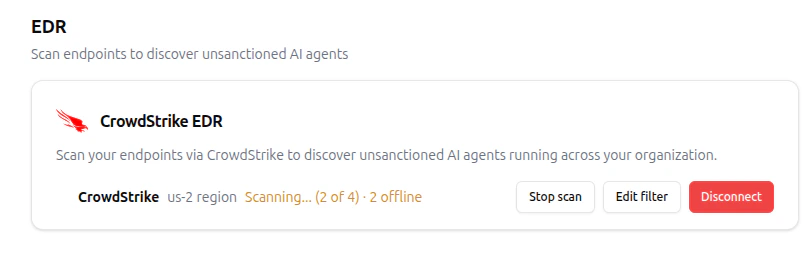 The card shows scan progress and the number of offline hosts. Offline hosts are not skipped: their commands are queued via CrowdStrike RTR and complete the next time the host comes online.
Click **Stop scan** to cancel an in-progress scan.
The card shows scan progress and the number of offline hosts. Offline hosts are not skipped: their commands are queued via CrowdStrike RTR and complete the next time the host comes online.
Click **Stop scan** to cancel an in-progress scan.
 ## 5. Disconnect
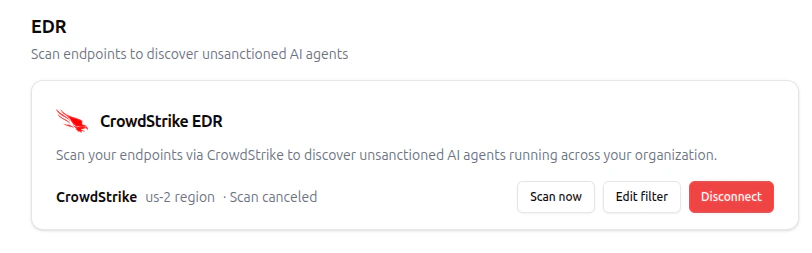
Click **Disconnect** on the EDR card to remove the integration. Oso deletes the stored credentials and stops querying CrowdStrike.
## 5. Disconnect
Click **Disconnect** on the EDR card to remove the integration. Oso deletes the stored credentials and stops querying CrowdStrike.