> ## Documentation Index
> Fetch the complete documentation index at: https://www.osohq.com/docs/llms.txt
> Use this file to discover all available pages before exploring further.
# Debugging a Policy
> Debug unexpected results from Oso Cloud using Logs and Explain.
When a user **gets access they shouldn’t** (or can’t access something they should), use **Logs** and **Explain** to trace the decision and find the cause.
## Example scenario
**Issue**: `User:bob` can **edit** `Document:foo` but should only have **read** access.
We’ll use Bob and `foo` as an example, but the same steps apply to any unexpected result.
## Step 1: Reproduce and locate the issue
Confirm the problem exists and that Oso Cloud is receiving the request.
1. Log in as Bob in your application.
2. Try to edit `foo`.
3. In Oso Cloud, open the **Logs** page.
4. Find the corresponding authorization request.
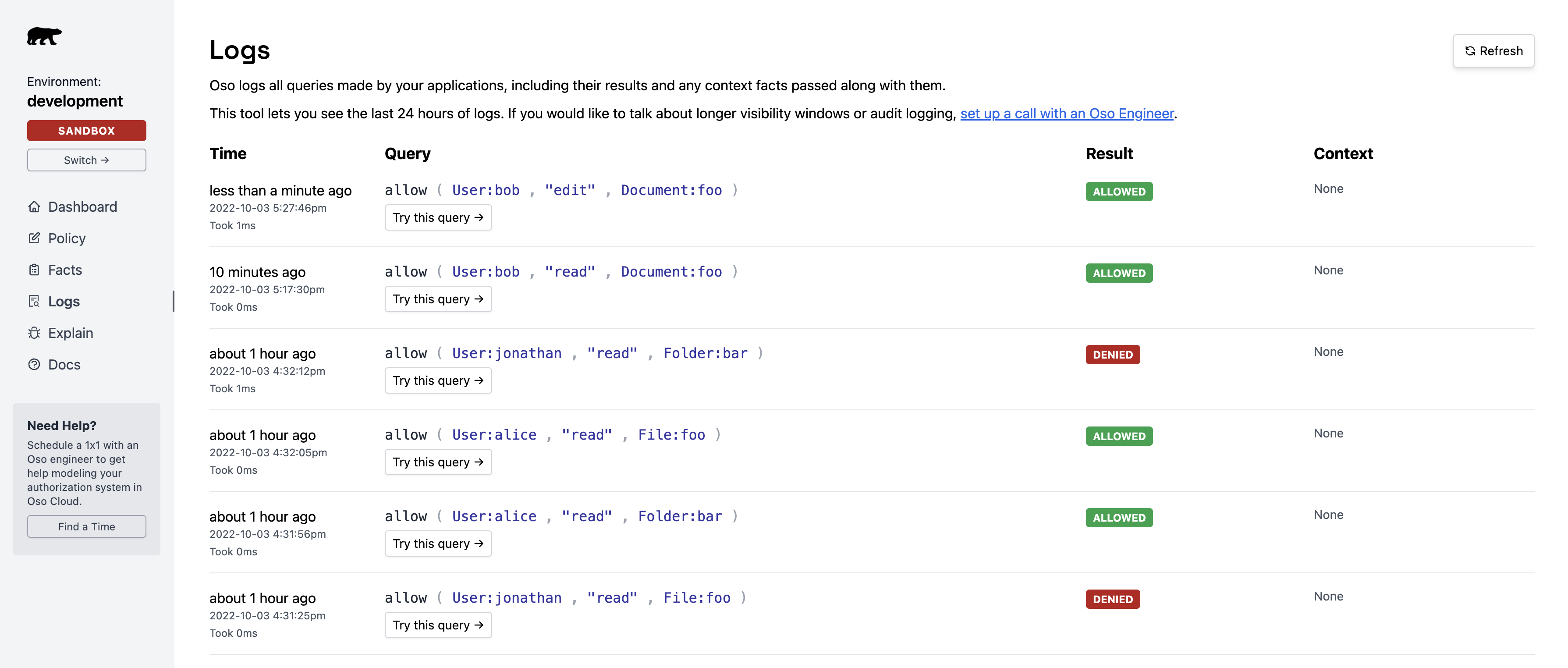 The logs confirm `User:bob` has `edit` **and** `read` permissions on `Document:foo`:
 **Key pint**: Oso Cloud received the authorization query and returned `allowed: true` — meaning the issue is in your **authorization model**, not your app code.
If no log appears, the request never reached Oso Cloud. Check that your app calls `oso.authorize()` for this action.
## Step 2: Analyze with Explain
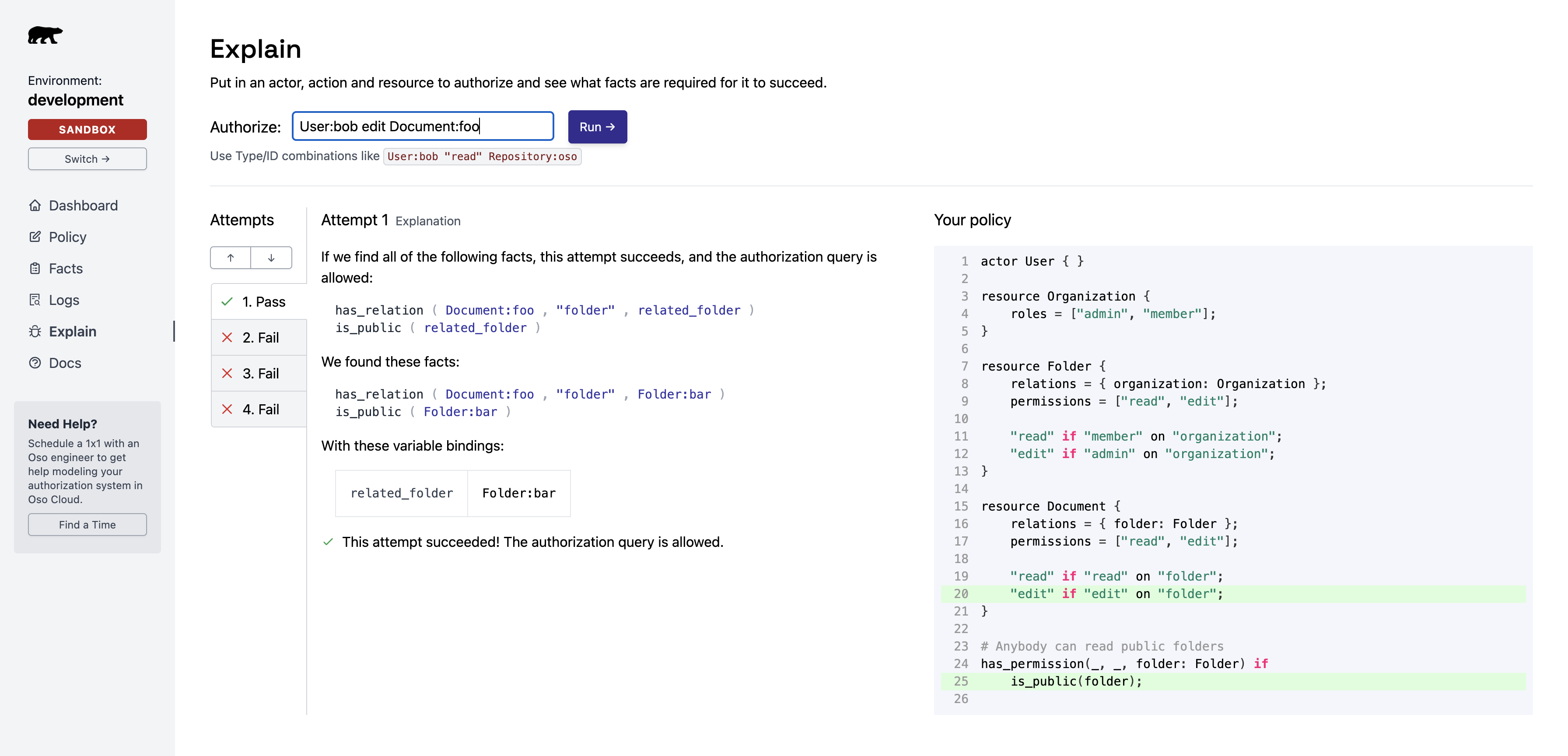
**Use the Explain feature** to understand why the authorization succeeded.
1. In the Logs page, click **"Try this query"** next to the unexpected result.
2. This opens the Explain page and re-runs the query.
**Key pint**: Oso Cloud received the authorization query and returned `allowed: true` — meaning the issue is in your **authorization model**, not your app code.
If no log appears, the request never reached Oso Cloud. Check that your app calls `oso.authorize()` for this action.
## Step 2: Analyze with Explain
**Use the Explain feature** to understand why the authorization succeeded.
1. In the Logs page, click **"Try this query"** next to the unexpected result.
2. This opens the Explain page and re-runs the query.
 Explain lists:
* The **facts** that contributed to the decision.
* The **policy rules** that matched.
Explain lists:
* The **facts** that contributed to the decision.
* The **policy rules** that matched.
 ### Review contributing facts
Two facts granted Bob edit access to `Document:foo`:
### Review contributing facts
Two facts granted Bob edit access to `Document:foo`:
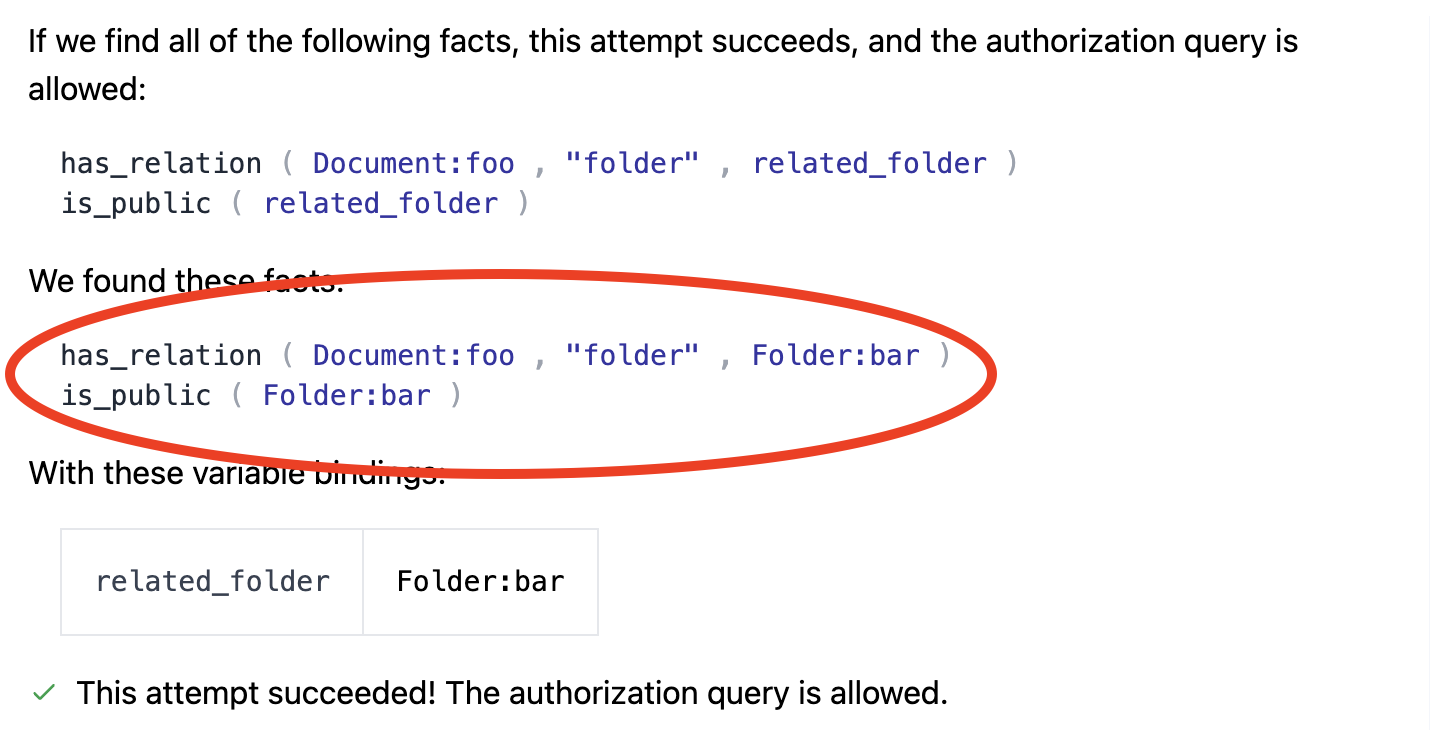 **Root cause**: Bob can edit this document because it belongs to a folder marked as **public**.
### Check policy rules
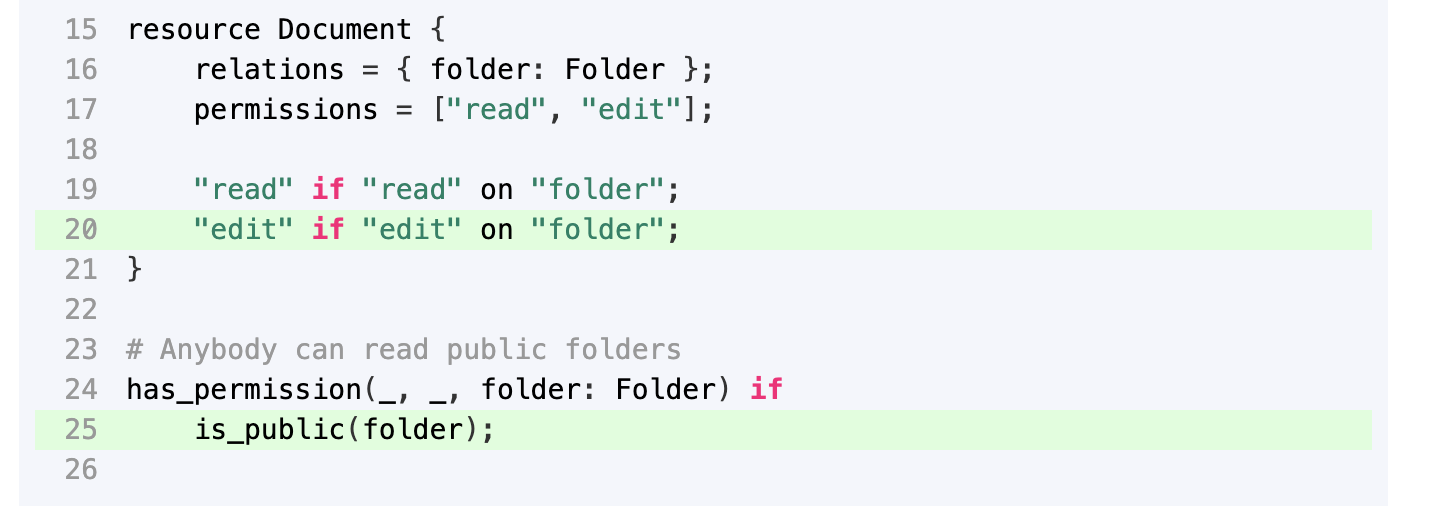
The policy rules on the right show which rules allowed the action:
**Root cause**: Bob can edit this document because it belongs to a folder marked as **public**.
### Check policy rules
The policy rules on the right show which rules allowed the action:
 ### Identify the fix
**Problem**: Users can perform *any* action on public folders (due to the wildcard `_`).
**Fix options**:
* Change the rule to only allow `read` actions on public folders
* Remove the public flag from folder `bar`
## Debug denied access (false negatives)
For actions that **should be allowed** but are denied, Explain still helps.
The left panel shows **attempts** to find a matching rule. Each attempt is one possible way to gain access.
### Identify the fix
**Problem**: Users can perform *any* action on public folders (due to the wildcard `_`).
**Fix options**:
* Change the rule to only allow `read` actions on public folders
* Remove the public flag from folder `bar`
## Debug denied access (false negatives)
For actions that **should be allowed** but are denied, Explain still helps.
The left panel shows **attempts** to find a matching rule. Each attempt is one possible way to gain access.
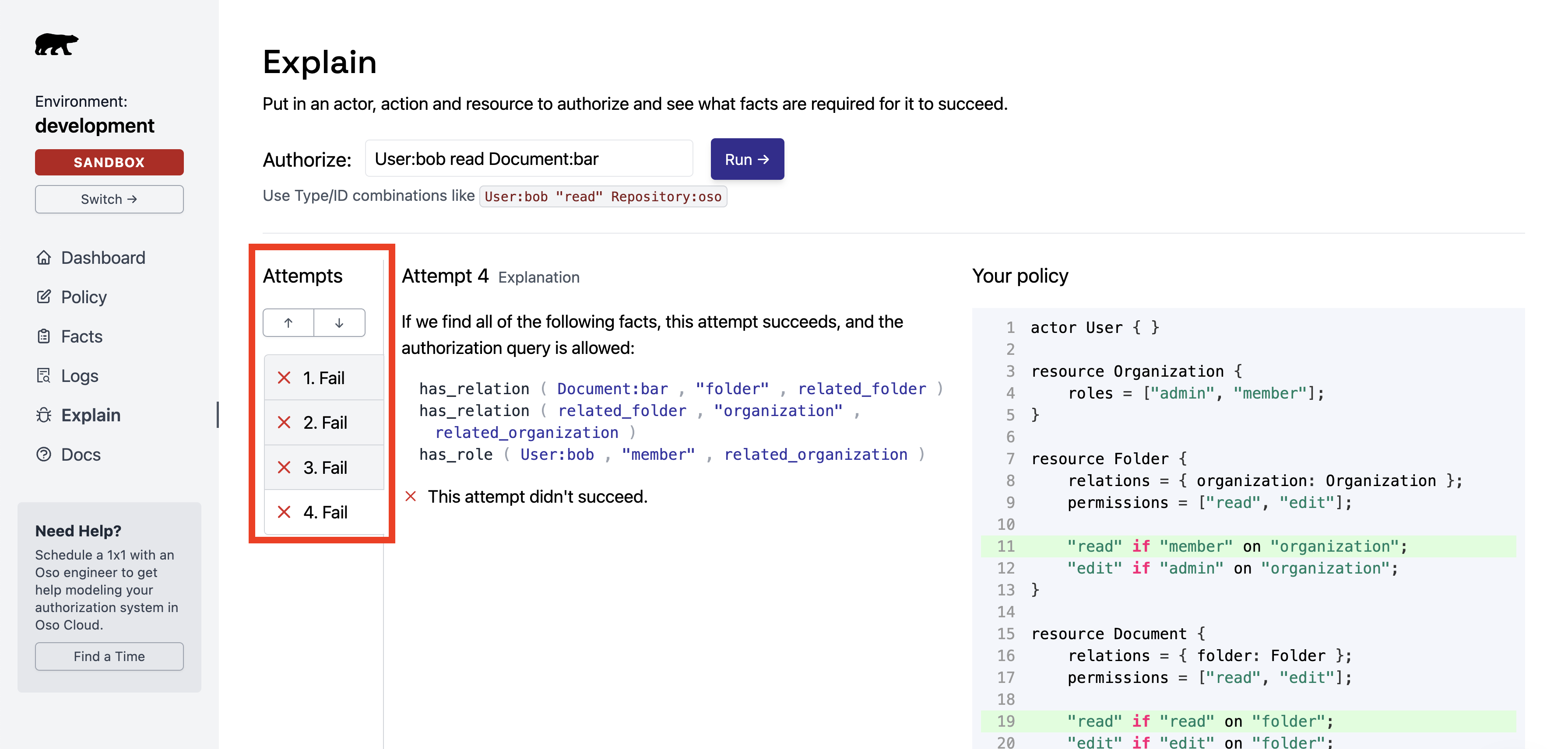 ### If the expected attempt appears
**Cause**: Required facts don't exist in Oso Cloud.
**Check for**:
* Missing `.tell()` calls in your backend.
* Facts with incorrect arguments or formatting.
### If the expected attempt does not appear
**Cause**: No matching rule in your policy.
**Fix**: Add the missing rule.
## Step 3: Verify data synchronization
**Check if your application data is in sync with Oso Cloud.**
If the logic looks right but results are wrong, facts may be out of sync.
### Check facts with CLI
Use the CLI to verify expected facts exist:
```bash theme={null}
oso-cloud get facts --filter "has_role(User:bob, _, Document:foo)"
```
### Set up data monitoring
If Oso Cloud is missing expected data, [set up a webhook](/develop/troubleshooting/logs) to monitor write requests and catch discrepancies early.
This feature is available to Growth plan customers. [Contact us on Slack](https://join-slack.osohq.com/) for setup assistance.
### If the expected attempt appears
**Cause**: Required facts don't exist in Oso Cloud.
**Check for**:
* Missing `.tell()` calls in your backend.
* Facts with incorrect arguments or formatting.
### If the expected attempt does not appear
**Cause**: No matching rule in your policy.
**Fix**: Add the missing rule.
## Step 3: Verify data synchronization
**Check if your application data is in sync with Oso Cloud.**
If the logic looks right but results are wrong, facts may be out of sync.
### Check facts with CLI
Use the CLI to verify expected facts exist:
```bash theme={null}
oso-cloud get facts --filter "has_role(User:bob, _, Document:foo)"
```
### Set up data monitoring
If Oso Cloud is missing expected data, [set up a webhook](/develop/troubleshooting/logs) to monitor write requests and catch discrepancies early.
This feature is available to Growth plan customers. [Contact us on Slack](https://join-slack.osohq.com/) for setup assistance.